 Tianspark Images

Light background
Dark background
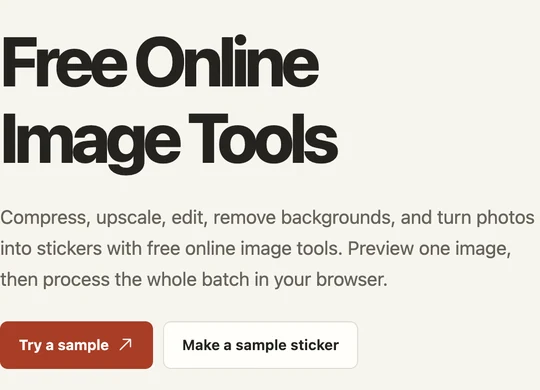
Convert, compress, upscale, edit, remove backgrounds, and turn photos into stickers with free online image tools. Preview one image, then process the whole batch in your browser.
Use your browser menu to install or add this site to your home screen, or enable JavaScript and choose Download.

Convert HEIC, JPG, PNG and other images to JPG, PNG, WebP or AVIF at their original dimensions.
Reduce file size for a website, email attachment, or upload limit. Compare JPG, PNG, WebP, and AVIF, and shrink the longest edge when fewer pixels will do.
Enlarge a product thumbnail, a small photo, or an image for a presentation. Compare 2×, 3×, or 4× upscaling where available and check fine detail before exporting.
Crop and resize product photos for consistent layouts, correct orientation and color, or add arrows, text, and watermarks to screenshots.
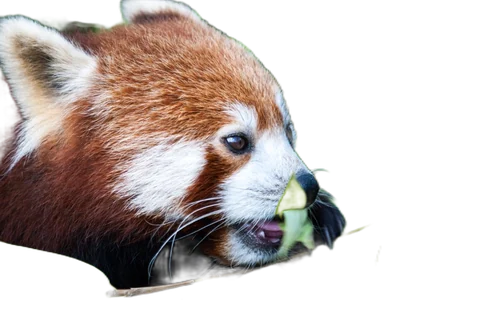
Create a transparent sticker for a slide, avatar, or digital journal. Add an outline or a foil finish and download the PNG.
Isolate people, pets, or products. Inspect hair and fine edges, then download a transparent PNG at the original width and height.
Download the result of each step and import it into the next tool.


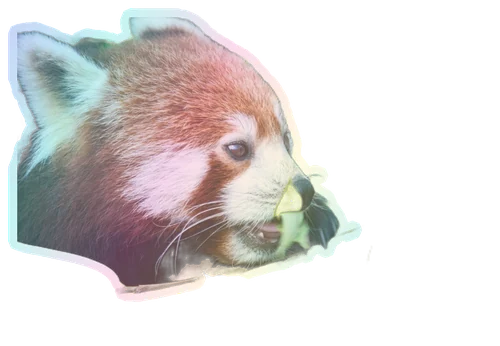
Start with the image that will be hardest to get right. A screenshot full of small text will reveal compression artifacts early. A portrait with fine hair is a better background-removal test than a clean silhouette.
Open the right tool, add a representative image first, and import the rest of the set.
Use Compare and zoom in on details. Check the output dimensions or file size against your requirements.
Run the rest with the same settings. Download an individual result or save several finished images in a ZIP.
All six tools are free to use without signing in. The site serves the application and model files. Your browser processes and exports the images.
Use the editor to crop or resize. Use the AI image enhancer when you need to add pixels to a low-resolution source. Compression also lets you set a maximum longest edge.
Download the result from one tool and import it into the next. Unzip multiple exports before importing them. Compress, Enhance, and Edit also offer optional background removal in preprocessing.
PNG is a useful working format for screenshots and transparent images. Choose your delivery format and compression settings at the end, based on where the file will be used.