 Tianspark Images
Remove Image Backgrounds for Free
Automatically remove the background from photos of people, pets, and products. Compare edges, batch process images, and download transparent PNGs at the original size.

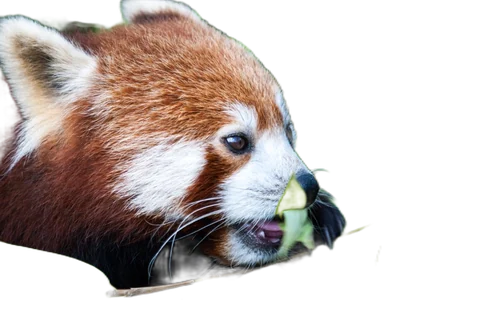
Remove a photo background and keep the original canvas
Make a reusable cutout of a person, product, or pet. The free background remover detects the subject and exports a transparent PNG you can place over a new background in a layout or slide.
How to remove the background from an image
- Import a photo
Add one or more photos. Start with Standard subject detection and process the first image.
- Inspect fine edges
Drag the comparison divider and zoom into hair, clothing, or small gaps. Try a different quality tier on the same image when you see missing details or residual background.
- Download transparent PNGs
Apply the chosen tier to the remaining images. Download a single PNG or a ZIP of completed files.


Inspect hair, fur, and translucent edges
Look at loose hairs, whiskers, and gaps around straps or handles. Compare the result on a dark and light background, particularly when the original subject and background are similar in color. Glass and thin fabric can retain some of the original scene’s color.
Reuse product cutouts on different backgrounds
A 1,200 × 800 px photo exports at 1,200 × 800 px, with the subject in the same position. The transparent surrounding area helps you align a set of images in a layout. Crop later if you need a tighter frame.
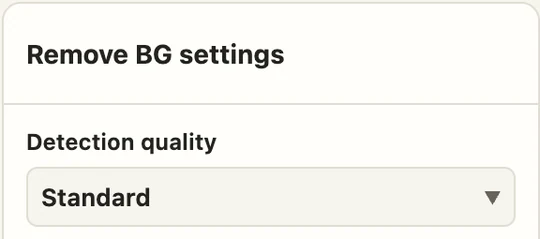
Choose a subject detection tier
Standard is a useful starting point for defined edges. Try High on a photo with hair or a busy backdrop. The highest tier requires a desktop browser with hardware WebGPU and a larger model download. Review the result on the source you intend to use.


Batch remove backgrounds and spot-check each set
The selected tier is reused, and the browser identifies the subject in each image individually. Group similar photos and check results from different angles or lighting conditions. Progress and estimated time are shown while the rest of the queue runs.
Frequently asked questions
Why does my transparent PNG look white?
Some image viewers use a white canvas behind transparent pixels. Place the PNG over a dark layer to verify that the color shows through.
What happens to an image that already has transparent edges?
The tool preserves existing transparency instead of detecting the subject again.
What image sizes are supported?
Both sides must be at most 4,096 px, and the image can contain at most 12 million pixels in total. Resize or crop larger files first.
Can I keep results after stopping a batch?
Yes. Completed files remain available for download. You can continue with the remaining images or retry failed items.
Are my photos uploaded for background removal?
The browser downloads the model, then handles subject detection and PNG export locally.