 Tianspark Images
Free Photo to Sticker Maker
Turn a photo into a transparent PNG sticker. Remove the background, choose an outline and finish, then download one sticker or a whole batch.
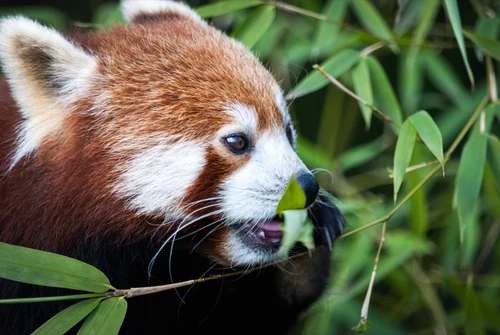
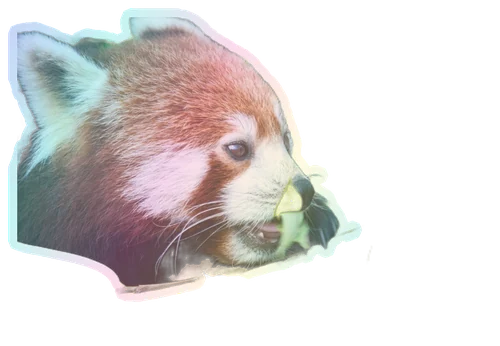
Turn a photo into a transparent PNG sticker
Use a pet photo for a journal, create a portrait sticker for a slide, or add a product cutout to a campaign graphic. The sticker maker removes the background and gives you control over the outline, padding, and finish.
How to make stickers from photos
- Choose a finish
Import a photo or transparent graphic. Pick a material and set the outline color, width, and transparent padding.
- Check the first sticker
Process the first image and compare the result at a larger zoom. Watch for outlines that close narrow gaps or obscure small details.
- Export stickers
Apply the settings to the rest of the batch. Download individual PNG stickers or a ZIP. A supported browser can also record a four-second clip of the selected result.
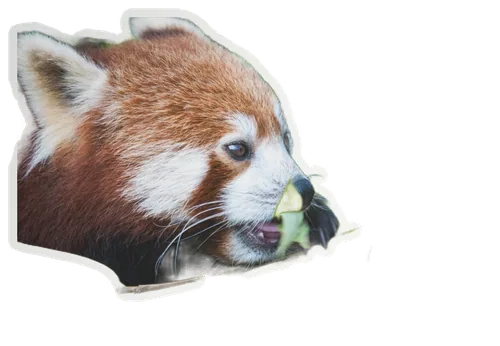
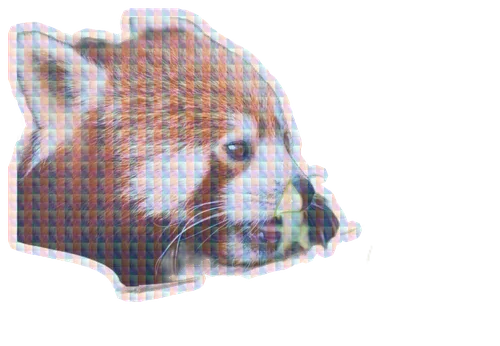
Compare matte, holographic, and mosaic finishes
Matte vinyl works well for a subdued look. Try holographic foil for a colorful sheen or mosaic foil for a fragmented surface. Check the design at the size people will see it, especially when it includes small type.
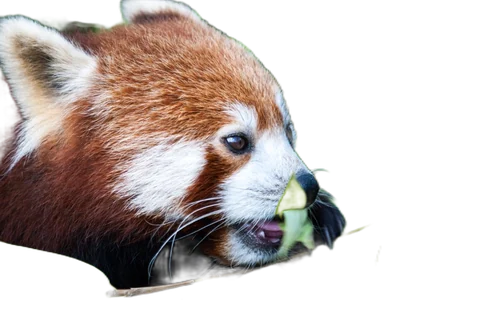
Use an outline and give it room
An outline follows the subject. Padding adds transparent space around the canvas. A wide outline can close small gaps between fingers, thin letters, or spiky fur. Adjust the width and check the result on the background where it will be used.
Preview different backgrounds and record a clip
Switch the preview background or tilt the sticker to inspect its finish. PNG export retains a transparent background. Short clips use the selected preview color, with paper white used when the preview is set to transparent.
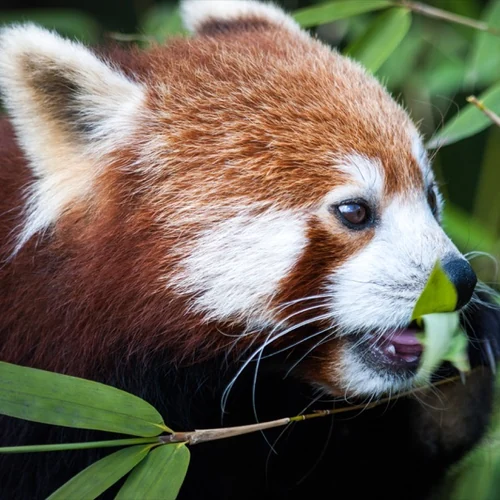

Make a consistent batch of photo stickers
Use the first image to pick a finish, outline color, and padding. Each source photo is cut out individually, and existing transparent edges are retained. Group photos by framing if a single outline width looks different on close-ups and distant subjects.
Frequently asked questions
Can I remove the background without adding a finish?
Yes. Choose None as the material to export a transparent PNG at the original dimensions.
Does the preview background show up in my sticker PNG?
The PNG has a transparent background. The outline and material are exported according to your appearance settings.
Can I use the sticker in a messaging app?
Download the PNG and check whether the app supports local sticker imports. Some apps impose their own dimensions and formats.
Why is the sticker canvas too large?
Output is limited to 4,096 px per edge and 12 million pixels after the outline and padding are added. Reduce the source dimensions, padding, or outline width.
Which video formats can I download?
The four-second clip can be recorded as WebM or MP4 where the browser supports it. Generate the sticker before recording.