 Tianspark Images
Free Online Image Editor
Crop, resize, rotate, and adjust photos in your browser. Add text, arrows, or watermarks to a single image or apply the same edits to a batch.
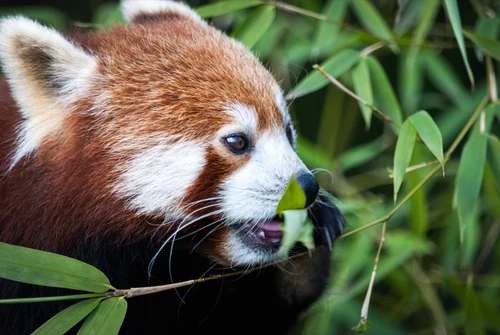
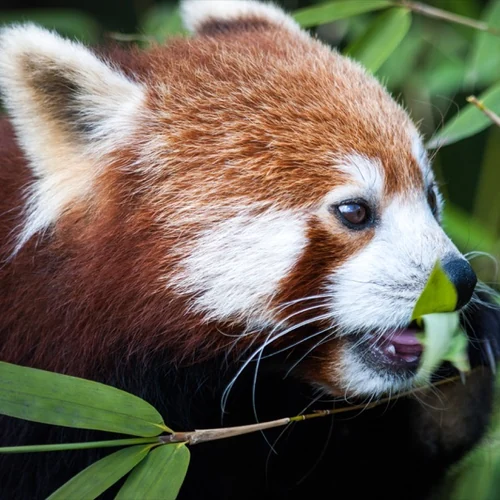
Crop and resize photos, then mark up the details
Get a set of listing images into a consistent frame, point out a button in a screenshot, or correct a sideways photo. The editor can apply an edit to one image or reuse it on a whole queue.
How to edit photos online
- Pick an edit scope
Import your files. Choose Current image or Entire queue, then open the editor.
- Make and apply your edits
Crop, resize, rotate, adjust colors, or add annotations and watermarks. Apply your edits to return to the workspace.
- Review the export
Choose a format and process the first image. Check framing, dimensions, and overlay placement before running the rest.
Crop for composition and resize for delivery
Use the crop box to decide what stays in the frame. The editor offers square, 4:5 portrait, and 3:2 landscape presets. After cropping, lock the aspect ratio and enter the target width or height to resize without stretching.
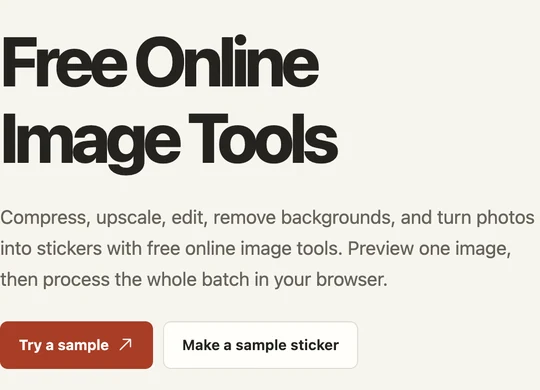
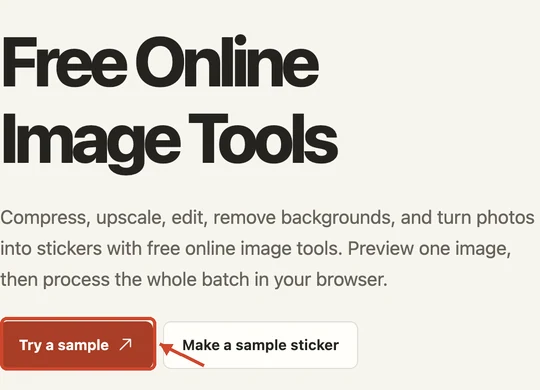
Correct orientation and annotate screenshots
Rotate or flip a picture, then fine-tune brightness, contrast, or warmth. For documentation, add a rectangle or arrow to an interface screenshot and make sure it stays readable at the exported size.
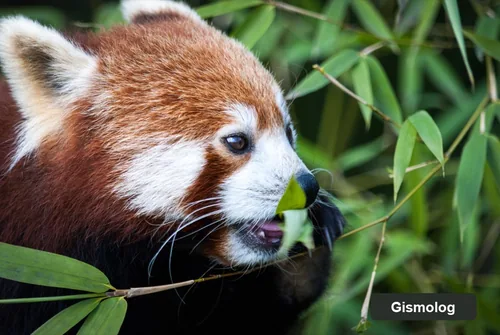
Add a watermark to a batch
Choose Entire queue, add a text or image watermark, and apply the edits. Review both landscape and portrait images. To reposition the mark on one file, select Current image and save an override for that item.
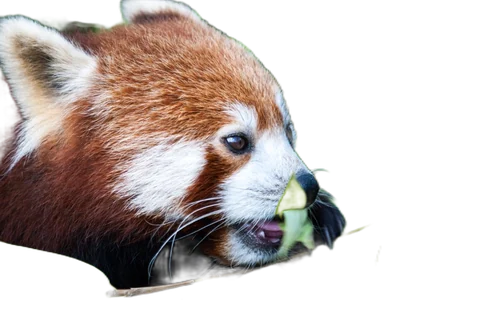
Export JPEG, PNG, or WebP
Use PNG or WebP for transparent areas. PNG also works well for crisp text and graphics. JPEG is useful for opaque photos. When preprocessing removes a background, the editor offers formats that retain transparency.
Frequently asked questions
What is the image editor’s size limit?
The editing canvas supports up to 4,096 px per edge and 12 million pixels total. Resize larger images before importing them.
Does batch resize force all images to the same dimensions?
With the aspect ratio locked, the queue reuses the resize factor. A portrait and a landscape image can end up with different dimensions.
Can I edit after removing a background?
Yes. Enable background removal in preprocessing and preview the cutout before opening the editor. Export PNG or WebP to keep the transparency.
Will the editor overwrite my original file?
Applying edits saves an editing plan to the workspace. Export downloads a new file and leaves the original on your device.
Do I have to upload photos to use the editor?
No. The editor works in your browser. The code and any model files needed for preprocessing are downloaded on demand.